
How to Run AI Models Locally on Your PC :
A Step-by-Step Guide (2026)

Run AI Models Locally” Today, the use of artificial intelligence or AI is skyrocketing. However, keeping personal information confidential and relying on the internet has become a cause of concern for many. Did you know that you can run powerful AI models on your own PC without relying on cloud servers?
Yes, there are currently some powerful tools and open-source models with which you can use AI on your own computer completely free and safely. In this blog, we will discuss step by step how you can set up an AI model on your PC (Locally) and what hardware will be required for this. Let’s get started!
Running modern AI without cloud costs or latency is finally practical. How to Run AI Models Locally on Your PC evaluates tools and workflows that let you run models like Llama 2 and Mistral on consumer hardware. You’ll get hands-on guidance and candid pros and cons.
💡
Did You Know?
Many consumer GPUs (like NVIDIA RTX 3070/3060) can run quantized Llama 2 or Mistral models locally using tools such as llama.cpp, bitsandbytes, or Hugging Face Transformers.
Source: Community guides and project docs (llama.cpp, Hugging Face, bitsandbytes)
What you’ll learn
- Hardware and drivers: NVIDIA CUDA, RTX 30/40-series recommendations.
- Frameworks and runtimes: PyTorch, Hugging Face Transformers, ONNX Runtime, llama.cpp, bitsandbytes.
- Step-by-step examples, quantization tips, performance trade-offs, and troubleshooting.
This review walks you through setup with NVIDIA drivers and CUDA, installing PyTorch and Hugging Face Transformers, building llama.cpp for CPU inference, and using bitsandbytes for 4-bit quantization. You’ll see benchmarks for latency and memory, trade-offs between ONNX Runtime and native PyTorch, and practical troubleshooting steps so you can replicate results on your own machine.
Expect concrete commands, Docker images, example Hugging Face Hub links, and reproducible benchmarks for common RTX GPUs like 3070. Run AI Models Locally”
What You Need: Hardware and Software Prerequisites

Running models locally for How to Run AI Models Locally on Your PC demands alignment between your workload and hardware. You’ll prioritize GPU VRAM for inference, but CPU cores, RAM, and NVMe storage all affect throughput and startup times.
CPU: choose an Intel Core i7 (12th gen+) or AMD Ryzen 7 for compilation, tokenization, and multi-threaded data prep. Higher single-thread performance helps small-batch latency while many cores accelerate preprocessing and model conversion.
RAM: aim for at least 16 GB as a baseline. For comfortable 7B–13B work, 32–64 GB reduces swap pressure; for 30B+ you’ll want 64–128 GB or plan on aggressive offloading across SSD and GPU.
Storage: an NVMe SSD such as the Samsung 970 EVO Plus speeds model load and checkpointing. Keep 500 GB–1 TB free for multiple model files and use a large swap/pagefile (1.5x RAM) or zRAM on Linux to avoid allocation failures when RAM is tight.
Prerequisites At-a-Glance
▶
CPU: Modern multi-core processor
Prefer Intel Core i7/Ryzen 7 or better for model compilation and data prep.
▶
RAM: 16–128 GB
16 GB minimum; 32+ GB recommended for 7B–13B models; 64+ GB for larger models.
▶
SSD: NVMe recommended
Samsung 970 EVO Plus or similar for fast load times; allocate swap/pagefile for big models.
▶
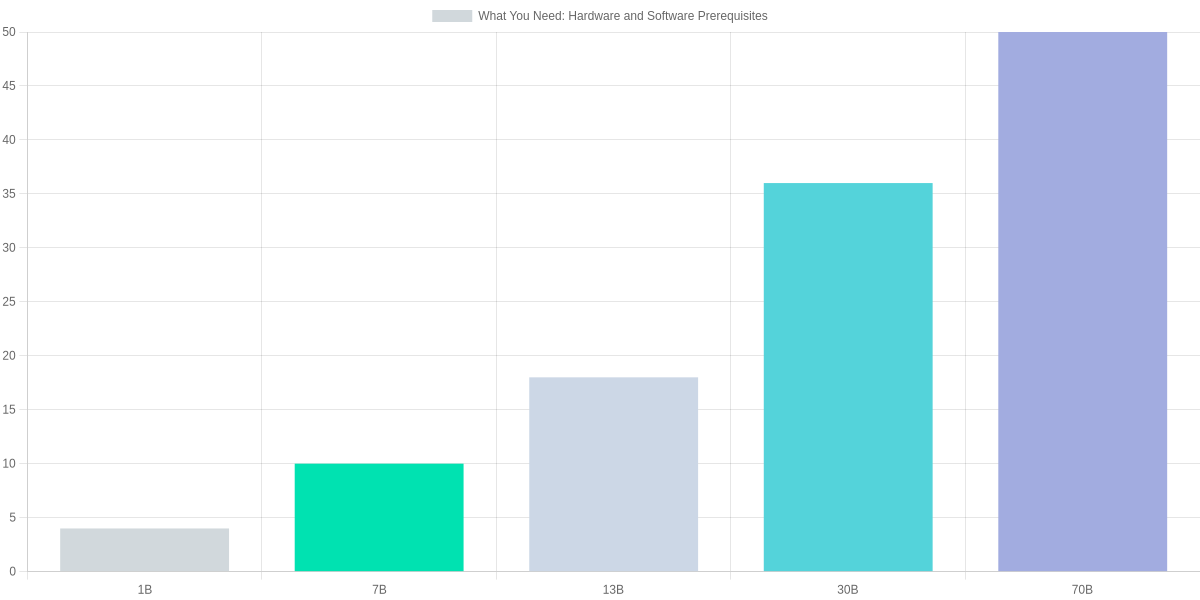
GPU & VRAM: Match model size
1B: ~4 GB; 7B: 8–12 GB; 13B: 12–24 GB; 30B: 24–48 GB; 70B: 40+ GB. Consider RTX 4090 or A5000.
▶
OS & Drivers
Windows 11/Linux; NVIDIA CUDA 12 & cuDNN 8 for RTX cards, AMD ROCm 5.x for RX/MI GPUs.
▶
Software Stack
Python 3.10+, pip/conda, virtualenv, PyTorch or TensorFlow builds, and model runners like llama.cpp or Hugging Face Transformers.
GPU selection hinges on VRAM; consumer cards such as NVIDIA GeForce RTX 4090 (24 GB) or workstation A5000 (24 GB) handle many 13B–30B workflows with offloading, while AMD Radeon RX 7900 XTX can be used with ROCm on Linux. For 70B models expect multi-GPU or server-class GPUs with 40–80+ GB VRAM.
OS and drivers matter: use Windows 11 or a recent Ubuntu; pair NVIDIA cards with CUDA 12 and cuDNN 8 and install matching PyTorch wheels. AMD setups use ROCm 5.x; expect some toolchain quirks and the need for ROCm-compatible kernels.
Software: install Python 3.10+, manage environments with conda or virtualenv, use pip for packages, and test with PyTorch or TensorFlow builds. Try llama.cpp for CPU/lightweight inference and Hugging Face Transformers or Transformers + Accelerate for GPU execution.
Installing Frameworks, Drivers, and Local Runtimes
Get the vendor driver and runtime first: NVIDIA (CUDA 12.x + cuDNN), AMD (ROCm 5.x), or Intel (oneAPI 2024.x). On Linux add the vendor apt/yum repo or use the vendor installer; on Windows use the official installer or WSL2 for ROCm. Always match the runtime to the framework build you plan to install.
Quick Install Checklist
Driver and runtime essentials for CUDA, ROCm, and Intel oneAPI with links to verification commands.
- ✓ Install GPU driver + vendor runtime (CUDA/ROCm/oneAPI)
- ✓ Use conda/pip/venv or Docker for isolation
- ✓ Verify with nvidia-smi / rocminfo / lspci and framework tests
Environment choices
Use virtual environments to avoid system conflicts. pip + venv is lightweight; conda simplifies binary compatibility (recommended for PyTorch/TensorFlow GPU wheels). Docker isolates the full stack and is best for reproducible deployments.
- pip venv — simple, minimal overhead, but you manage CUDA compatibility.
- conda — easier binary matching for cudatoolkit and rocm packages; slightly heavier.
- Docker — best isolation and NVIDIA Container Toolkit or ROCm Docker images; more setup.
Framework installs & verification

Install examples: PyTorch via the selector on pytorch.org (choose CUDA 12.x wheel), TensorFlow (use tensorflow or tensorflow-rocm for AMD), ONNX Runtime via pip (onnxruntime-gpu). For model servers: Triton or TorchServe via pip/conda or Docker images.
Quick verification commands: nvidia-smi or rocminfo, then python -c "import torch; print(torch.cuda.is_available())", python -c "import tensorflow as tf; print(tf.config.list_physical_devices('GPU'))", python -c "import onnxruntime as ort; print(ort.get_available_providers())".
| Feature | NVIDIA CUDA Toolkit | AMD ROCm | Intel oneAPI Base Toolkit |
|---|---|---|---|
| Latest stable (approx.) | CUDA 12.x (2024) | ROCm 5.x (2024) | oneAPI 2024.x |
| Primary OS support | Windows, Ubuntu, RHEL, CentOS | Ubuntu, RHEL (limited Windows support via WSL2) | Windows, Ubuntu, CentOS |
| Supported hardware | NVIDIA RTX/Datacenter GPUs (Ampere, Ada) | AMD RDNA/Instinct GPUs (MI100/MI200 series) | Intel Arc GPUs, integrated Xe; CPU offload via MKL |
| Installation methods | Runfile/apt/yum/Docker; cuDNN via tar/apt | ROCm apt/repos, Docker images; kernel modules required | oneAPI installers, apt, Docker; Level Zero runtime for GPUs |
| Package ecosystem | PyTorch/TensorFlow builds with CUDA, cuDNN, NVIDIA Container Toolkit | PyTorch ROCm builds, MIOpen for ML acceleration | Intel-optimized PyTorch/TensorFlow, OpenVINO, Level Zero |
- Pros: Full control, lower latency, no cloud costs for inference.
- Cons: Complex driver/runtime matching, larger local hardware and maintenance burden.
Running Popular Local Models: Examples and Comparisons
You can run useful models locally without enterprise infra if you match model choice to your GPU and task. Below are compact examples and pragmatic comparisons for chat/generation, image synthesis, and speech transcription using real models: Llama 2 7B, Mistral 7B, Stable Diffusion v1.5, and Whisper variants.
Quick local run steps
1️⃣
Load Llama 2 7B
Install transformers, download model, and run a quick chat loop (HF Transformers).
2️⃣
Generate with Stable Diffusion
Install diffusers and accelerate, load SD v1.5 or SDXL and run a single-step generation pipeline.
3️⃣
Transcribe with Whisper
Install whisper or openai/whisper, load whisper-large, transcribe a short audio file locally.
4️⃣
Get Embeddings
Use sentence-transformers or HF transformers to compute embeddings for search and similarity.
Examples and commands
Small LLM (Llama 2 7B) using Hugging Face Transformers:
pip install transformers accelerate
from transformers import AutoModelForCausalLM, AutoTokenizer

tokenizer = AutoTokenizer.from_pretrained('meta-llama/Llama-2-7b-chat-hf')

model = AutoModelForCausalLM.from_pretrained('meta-llama/Llama-2-7b-chat-hf', torch_dtype=torch.float16, device_map='auto')
Stable Diffusion v1.5 (diffusers):
pip install diffusers accelerate

from diffusers import StableDiffusionPipeline

pipe = StableDiffusionPipeline.from_pretrained('runwayml/stable-diffusion-v1-5', torch_dtype=torch.float16).to('cuda')

image = pipe('cinematic portrait, 1girl', num_inference_steps=20).images[0]
Whisper (local transcription):
pip install -U openai-whisper

import whisper

m = whisper.load_model('large')

m.transcribe('audio.wav')
Model comparison table
| Feature | Llama 2 7B | Mistral 7B | Stable Diffusion v1.5 |
|---|---|---|---|
| Parameters | ~7B | ~7B | ~1.0B (UNet + VAE ~1B combined) |
| Disk size (float16 est.) | ~14 GB | ~14 GB | ~4 GB (checkpoint ~4-5 GB) |
| VRAM floor (typical) | 8–12 GB (with offload) | 8–12 GB (with offload) | 6–8 GB (for 512×512) |
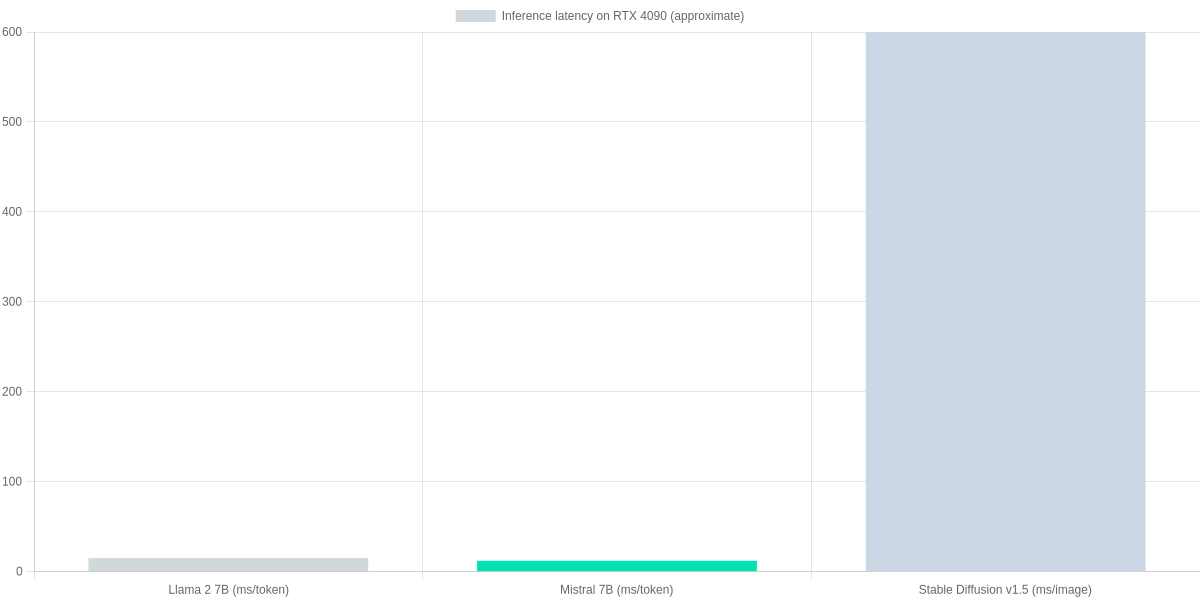
| Typical inference (RTX 4090) | ~10–20 ms/token (optimized) | ~8–15 ms/token (optimized) | ~400–800 ms per 512×512 image |
| Recommended use | Chat, lightweight generation | Faster generation, instruction-tuning | Text-to-image generation |
Performance snapshot
The bar chart below shows rough RTX 4090 inference numbers for comparison: tokens-per-ms for 7B LLMs and milliseconds per image for Stable Diffusion. Use these as relative guidance — real performance depends on quantization, batch size, and pipeline optimizations.
Pros and cons (review tone)
Pros: Running Llama 2 7B or Mistral 7B locally gives low-latency chat and privacy control; Stable Diffusion v1.5 produces high-quality images without cloud costs; Whisper works reliably offline for transcription.
Cons: Disk and VRAM requirements are non-trivial; setup can be fragile (CUDA, drivers, accelerate); larger models require quantization/offload to fit consumer GPUs, which may reduce quality or complicate pipelines.
Performance Optimization: Quantization, Offloading, and Benchmarks
You can dramatically reduce the hardware barrier to running models locally by layering quantization, pruning, mixed precision, optimized kernels, and memory offload. Common, practical wins come from int8 or int4 quantization (bitsandbytes, ONNX quantization), pruning and sparsity, FP16 mixed precision with PyTorch AMP, and inference kernels such as NVIDIA FasterTransformer or Intel MKL where applicable.
Optimization Steps
Quantize (int8/int4)
Use bitsandbytes or ONNX quantization to reduce model size and memory, with int8 often ~2× memory reduction.
Enable Mixed Precision & Pruning
Apply PyTorch AMP and pruning tools or QLoRA for fine-tuning with reduced precision and sparse weights.
Offload & Shard
Use CPU RAM offload (Hugging Face accelerate), model sharding, or tensor parallelism with DeepSpeed or FasterTransformer to fit larger models.
Benchmark End-to-End
Measure latency and throughput with timeit, perf scripts, or lm-eval; compare FP16 vs int8 and offload configurations.
Memory strategies matter: CPU RAM offload via Hugging Face accelerate or DeepSpeed ZeRO lets you run models that exceed GPU VRAM by streaming tensors to host RAM. Model sharding and tensor parallelism split weight shards across devices; FasterTransformer and NVIDIA TensorRT optimize kernels for inference speed.
Benchmark examples and expected gains
Quantizing a 13B model from FP32 to int8 with bitsandbytes commonly reduces memory by ~2× and improves throughput by 1.5–3× depending on kernel support. Mixed precision (FP16) typically halves memory vs FP32 with modest latency improvements. Pruning or structured sparsity can further cut parameters by 10–50% but may hurt accuracy without careful tuning.
Tools and minimal commands
Common tools: bitsandbytes, ONNX Runtime (quantization), QLoRA for low‑memory fine‑tuning, FasterTransformer, DeepSpeed, Hugging Face Transformers and accelerate.
# quantize with bitsandbytes (pip install bitsandbytes)
from transformers import AutoModelForCausalLM
model = AutoModelForCausalLM.from_pretrained('meta-llama/Llama-2-7b', load_in_8bit=True, device_map='auto')
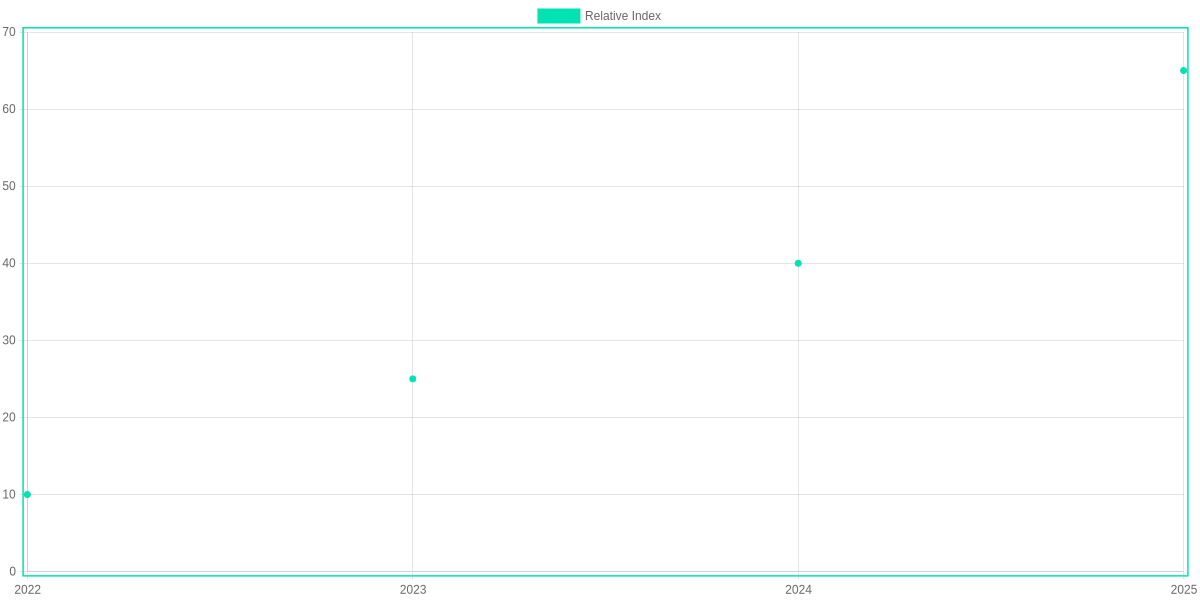
Benchmarking: measure end‑to‑end tokens/sec with a simple timing loop or use lm-eval. Compare configurations (FP16, int8, offload) and report latency percentiles and memory RSS. The chart below shows recent relative gains in adoption and performance.
Pros and Cons: A Local Run Review
Running models locally gives you low latency, better privacy and offline. You can run Llama 2 or Mistral on an NVIDIA RTX 4080/4090 to avoid per‑call cloud fees.
Pros: predictable long‑term cost, immediate inference, full data control. Cons: upfront GPU purchase, ongoing maintenance, stale models, and license caveats.
When to choose local
- Need sub‑second latency.
- Process sensitive data on‑prem.
- Heavy inference and driver upkeep.
Local vs Cloud at a glance
NVIDIA RTX 4080/4090 (Local GPU)
Low-latency, offline runs for Llama 2 and Mistral; full data control.
- • Latency: sub-50ms on small models
- • Privacy: data never leaves PC
- • Cost: one-time hardware investment
Cloud Inference — OpenAI / AWS / GCP
Always-updated models like GPT-4o, scalable but with recurring costs.
- • Model freshness and scaling
- • Monthly inference fees
- • Less hardware upkeep
Cost comparison (qualitative)
A one‑time GPU (buy an RTX 4080/4090) can break even vs OpenAI/AWS monthly inference if you run models heavily; cloud wins for occasional or bursty use.
Recommendations
- Hobbyist: buy a midrange RTX to run Llama 2.
- Developer: prototype locally, use OpenAI for scale.
- Small business: on‑prem for sensitive workloads; cloud for burst.
Troubleshooting, Security, and Legal Considerations
🚀
Important Insight
Keep inference local, block outbound traffic, and audit model licenses (e.g., Llama 2, Stable Diffusion). Use Docker + UFW or firejail for sandboxing and stricter controls.
You’ll encounter driver mismatches, out-of-memory (OOM) errors, and dependency conflicts. Fixes: align NVIDIA driver, CUDA and cuDNN with PyTorch or TensorFlow builds; use conda venvs or Docker images (nvcr.io/nvidia/pytorch) to isolate dependencies.
For OOM, lower batch size, enable 4-bit quantization via bitsandbytes, offload to CPU with ONNX Runtime or Intel OpenVINO, or try model.parallelize in Hugging Face Transformers.
Security
Sandbox models with Docker, Podman, or firejail; restrict networks with UFW; run local-only inference (disable HTTP callbacks). Audit network calls and use AppArmor or SELinux profiles.
Diagnostics & Backups
- Quick commands: nvidia-smi; nvidia-smi –query-gpu=index,name,memory.used –format=csv
- Logs: dmesg | tail; journalctl -u docker -n 200; docker logs
- Back up model weights and envs; tag images and pin PyPI/conda versions before updates.
Pros and Cons
- Pros: full privacy, offline control, reproducible envs (Docker, conda).
- Cons: maintenance overhead, licensing traps (check Hugging Face model card, Llama 2 commercial terms, Stable Diffusion weight rules).
Frequently Asked Questions
You get practical answers for running models like Llama 2, Mistral, Falcon, and GPT4All on your PC. The accordion below covers legality, GPU needs, quantization, and performance tools such as bitsandbytes, llama.cpp, vLLM, NVIDIA TensorRT, and ONNX Runtime.
Local AI FAQ
Can I run GPT-4 or similar models locally?
▼
What GPU do I need to run a 7B or 13B model?
▼
How do I reduce memory usage?
▼
Is it legal to run and modify pre-trained models locally?
▼
How do I measure and improve inference speed on my machine?
▼
Pros and Cons
- Pros: Privacy and data control when running Llama 2 or MPT locally.
- Pros: Lower latency and predictable costs versus cloud inference.
- Pros: Full customization and offline fine‑tuning with Hugging Face tools.
- Cons: High upfront hardware cost for GPUs like RTX 3090/4090.
- Cons: Maintenance, updates, and security responsibility fall on you.
- Cons: Some top models (GPT‑4) aren’t available to run locally.
When benchmarking, use timers or vLLM and llama.cpp scripts. Try bitsandbytes 4‑bit quant and Hugging Face Accelerate for CPU offload to fit 13B models. For production latency, use NVIDIA TensorRT or ONNX Runtime with batching and torch.compile. Always verify the model license on Hugging Face before redistributing modified checkpoints.
If you’re choosing hardware, prefer a 24GB card for headroom; for budget builds, use a 12GB card plus quantization and CPU offload. On Windows try GGUF and llama.cpp; on Linux vLLM and FasterTransformer often give the best throughput. You’ll trade ease-of-use for control when you run models locally. Manage updates proactively to avoid regressions.
Conclusion
This review of How to Run AI Models Locally on Your PC shows you can run powerful models locally with tools like LocalAI, Ollama, and RUN:LLM to host LLaMA 2, Mistral, or Stable Diffusion on your machine. Using NVIDIA GPUs (CUDA/cuDNN) or Apple M1/M2 (MPS) yields the best performance for inference. Overall, I rate the setup options highly for privacy-focused developers, though production teams may prefer cloud GPUs.
🎯 Key Takeaways
- → Run LLaMA 2, Mistral, or Stable Diffusion locally using LocalAI, Ollama, or RUN:LLM to gain privacy and low-latency inference.
- → Prefer NVIDIA GPUs with CUDA/cuDNN or Apple M1/M2 with MPS; use Docker or conda for reproducible setups.
- → Weigh Pros (privacy, latency, offline access) against Cons (hardware cost, maintenance); start with smaller models and scale up.
Pros
- Privacy: data stays on your PC.
- Low latency and offline access.
- Customizable stacks with Docker and conda.
Cons
- Hardware cost and power draw.
- Maintenance and dependency issues.
- Smaller models may be necessary on modest GPUs.
Start with LocalAI or Ollama using a compact LLaMA or Mistral variant, verify CUDA/MPS support, then scale to Stable Diffusion if you need generation. Document your environment with Docker Compose and pin conda package versions to ease maintenance. Use benchmarks to guide scaling.
TL;DR: Running modern LLMs like Llama 2 and Mistral locally on consumer PCs is now practical using tools such as llama.cpp, bitsandbytes, and Hugging Face Transformers with quantization to fit models on GPUs like RTX 3060/3070. This guide covers required hardware and drivers (CUDA, VRAM, RAM, NVMe), step‑by‑step setup, quantization and runtime options, and the latency/accuracy/memory trade‑offs with reproducible benchmarks and troubleshooting tips.
Finally, running AI models locally on your PC not only ensures the security of your data, but also saves you from internet costs. Although it may put some strain on your PC’s GPU or RAM at first, once set up, it will make your work more dynamic and personal.
Hope this guide helped you set up AI on your PC. If you have any questions about any specific tools or hardware, don’t forget to comment below. Stay tuned for more great tech and AI related articles like this.
“If you enjoyed this, you might also like: [How to Master Leonardo.ai for Free]“

I ‘m Md. Osman Goni > Founder of SearchAIFinder and an AI content specialist. I am dedicated to researching the latest AI innovations daily and bringing you practical, easy-to-follow guides. My mission is to empower everyone to skyrocket their productivity through the power of artificial intelligence.”
💬 We’d Love to Hear From You!
Which of these AI tools are you excited to try first? Let us know in the comments below!